Styling: The Box Model
Every element in PicTex is treated as a rectangular box. This guide explains how to control the size, spacing, and appearance of these boxes.
Spacing: margin and padding
.padding(): Sets the space inside an element's border, between the border and the content. It accepts 1, 2, or 4 values, just like in CSS..margin(): Sets the space outside an element's border, pushing away other elements. It also accepts 1, 2, or 4 values, just like in CSS.
Borders: .border() and .border_radius()
.border(width, color, style): Adds a border around the element. Thestylecan be'solid','dashed', or'dotted'..border_radius(): Creates rounded corners. It accepts absolute pixels or percentages ("50%"to create a circle/ellipse). It also supports 1, 2, or 4 values for individual corner control.
from pictex import *

Canvas().render(
    Row()
    .size(100, 100)
    .background_color("green")
    .border(3, "black")
    .border_radius("50%")
).save("circle.png")

Sizing (.size())
The .size() method sets the explicit dimensions of an element's box. You can control the width and height independently.
PicTex's sizing is powerful and flexible, supporting several modes for each dimension:
| Value Type | Example | Behavior |
|---|---|---|
'auto' (Default) |
size() or size(width=200) |
Context-dependent. Usually wraps the content (fit-content), but crucially, it allows the element to be stretched by its parent's alignment properties. This is default behavior. |
'fit-content' |
size(height='fit-content') |
Explicit. Forces the element to wrap its content. Use this to prevent an element from being stretched by its parent. |
'fit-background-image' |
size(width='fit-background-image') |
Explicit. Forces the element to match the dimensions of its background image. |
| Absolute (pixels) | size(width=200, height=150) |
Explicit. Sets a fixed size in pixels. This will override parent stretching. |
| Percentage | size(width="50%") |
Explicit. Sets the size as a percentage of the parent's content area. This will override parent stretching. |
The key difference to understand is between 'auto' and 'fit-content':
- Use
'auto'(or simply don't call.size()for an axis) when you want an element to be flexible and respect its parent's layout rules likestretch. - Use
'fit-content'when you want to force an element to be exactly as big as its content, no matter what its parent wants.
Note: For flexible sizing that fills available space, use .flex_grow(1) instead of size modes. See Core Concepts: Layout for details.
Size Constraints
Control the minimum and maximum dimensions of an element:
from pictex import *

# Prevent collapse with minimum size
card = Column(
    Text("Dynamic content")
).min_width(200).min_height(100)

# Prevent overflow with maximum size
description = Text(long_text).max_width(400).max_height(200)

# Combine constraints for responsive layouts
flexible_box = Row(children).size(width="50%").min_width(300).max_width(800)
Available methods:
- .min_width(value) - Set minimum width (supports pixels and percentages)
- .max_width(value) - Set maximum width (supports pixels and percentages)
- .min_height(value) - Set minimum height (supports pixels and percentages)
- .max_height(value) - Set maximum height (supports pixels and percentages)
Aspect Ratio
Maintain a specific width-to-height proportion:
from pictex import *

# 16:9 video placeholder
video_frame = Column(content).size(width=400).aspect_ratio(16/9)  # height = 225

# Square (1:1)
square = Row(icon).size(width=100).aspect_ratio(1)  # height = 100

# Using string format
classic = Column(image).size(width=400).aspect_ratio("4/3")  # height = 300
When you set an aspect ratio and specify one dimension, the other is calculated automatically. Common aspect ratios:
- 16/9 ≈ 1.778 - Widescreen video
- 4/3 ≈ 1.333 - Classic TV/monitor
- 1 - Perfect square
- 9/16 ≈ 0.5625 - Vertical video (stories)
- 1.618 - Golden ratio
The border-box Sizing Model
When you set the size of an element in PicTex, you are defining its total visible dimensions, including padding and border.
If you create an element with .size(width=200) and then add .padding(20), the element will still be 200px wide on the final image. The padding is applied inward, reducing the space available for the content.
This border-box model makes layouts incredibly predictable and robust.
# This element's final width in the layout is exactly 300px.
box = Row(Text("Content"))\
    .size(width=300)\
    .padding(20)\
    .border(5, "blue")

# The content area inside is now 300 - (2*20 padding) - (2*5 border) = 250px wide.
Background Image Sizing
The 'fit-background-image' size mode automatically sets an element's dimensions to match its background image. This is useful when you want a container to be exactly the size of its background.
from pictex import *

# Element will be 400x300 if the image is 400x300
card = (
    Row(Text("Content"))
    .background_image("photo.jpg")
    .fit_background_image()
    .padding(20)
)
Backgrounds
.background_color(): Sets the background fill (can be a color string or aLinearGradient)..background_image(path, size_mode): Sets a background image. Thesize_modecan be'cover','contain', or'tile'..fit_background_image(): A convenience method that is a shortcut forsize('fit-background-image', 'fit-background-image').
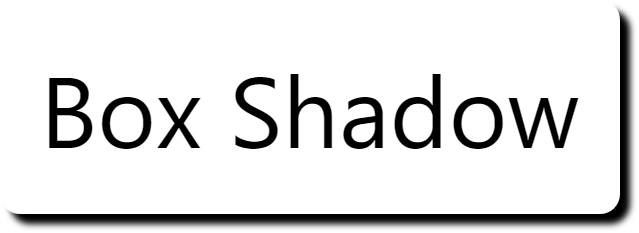
Box Shadows (.box_shadows())
Applies one or more shadows to the element's box. This method is declarative: calling it replaces any previously defined box shadows.
To use it, first import the Shadow class.
from pictex import Canvas, Shadow

canvas = (
    Canvas()
    .font_size(100)
    .padding(40)
    .background_color("white")
    .border_radius(20)
    .box_shadows(Shadow(offset=(10, 10), blur_radius=3, color="black"))
)

canvas.render("Box Shadow").save("box_shadow.png")